With KaraokeDJ.com v1.97, the host Dashboard can capture your current venue location after you sign in. That location powers the upcoming guest automatch host feature for our Apple and Android apps—so guests can more easily find and connect with you at live venues. This guide shows how to enable and manage that permission in Google Chrome.
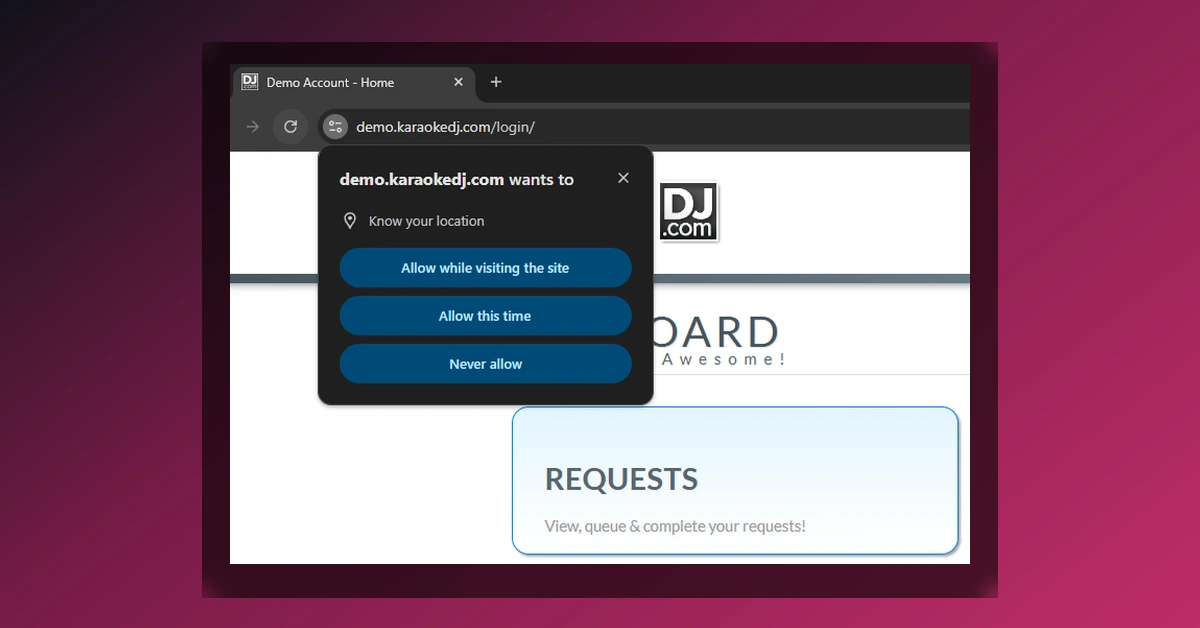
Location is only requested when you land on the Dashboard after logging in. Chrome will show a permission prompt for your KaraokeDJ.com subdomain (for example, yourbusiness.karaokedj.com). You can allow it once, change it later, or confirm it is whitelisted under Chrome’s Location settings if the prompt no longer appears.
Why the Dashboard asks for location
When location is allowed, KaraokeDJ.com stores your current venue coordinates from that sign-in. Guests using the upcoming mobile apps can then be matched to hosts who are checked in nearby. You do not need a separate settings page for the first capture—Chrome’s built-in prompt is the control surface.
If you deny or block location, the Dashboard still works as usual for songbooks and requests. You simply will not contribute a venue location for automatch until permission is granted on a later login.
Allow location when Chrome prompts you
Use this flow the first time (or after a fresh login):
- Sign in to your host Dashboard
Open your custom KaraokeDJ.com login URL (your subdomain.karaokedj.com) in Google Chrome and sign in with your host account. - Watch for the Chrome location prompt
After a successful login, Chrome may show a dialog like “yourbusiness.karaokedj.com wants to… Know your location.” - Choose Allow
Pick Allow while visiting the site (recommended for hosting nights) or Allow this time. Avoid Never allow unless you intend to block location for that subdomain.
That’s it for a normal first-time setup. Stay on HTTPS (your live Dashboard already is)—Chrome only offers location on secure pages.
If you don’t see the prompt (or you blocked it earlier)
Chrome remembers a previous Never allow / Block choice and will not ask again until you change site settings. To re-enable location for your host subdomain:
- Open site controls from the address bar
Click the tune / lock icon to the left of the URL while you’re on your Dashboard. - Open Site settings
Choose Site settings (or Permissions, depending on your Chrome version). - Set Location to Allow
Find Location and change it from Block to Allow. - Reload and sign in again if needed
Refresh the Dashboard. If location still isn’t captured, sign out and sign back in so the post-login capture runs again with the new permission.
Confirm your subdomain is whitelisted in Chrome Settings
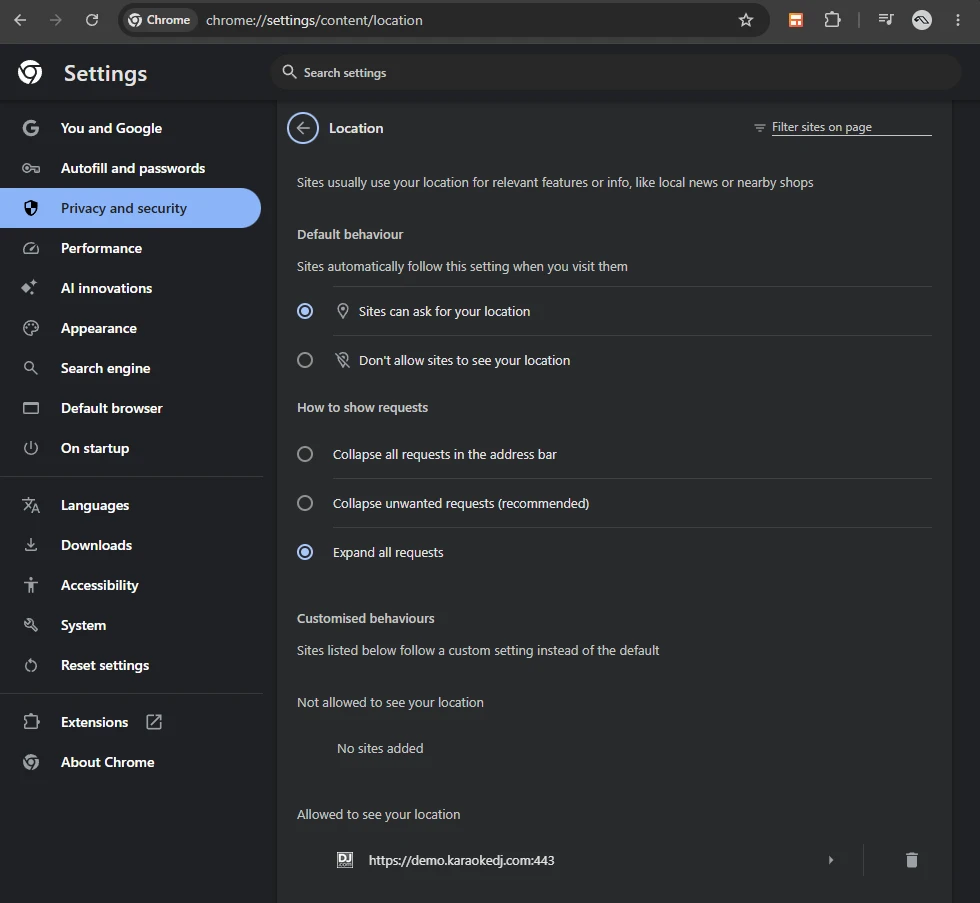
To verify Chrome has stored permission for your host subdomain—or to fix a blocked site—open Chrome’s Location settings directly:
- In the address bar, go to chrome://settings/content/location (or open Chrome Settings → Privacy and security → Site settings → Location).
- Under Default behavior, keep Sites can ask for your location selected. If this is set to “Don’t allow sites to see your location,” Chrome will never prompt on the Dashboard.
- Under Customized behaviors, check the lists:
- Allowed to see your location should include your host URL, such as https://yourbusiness.karaokedj.com:443 (each subdomain is listed separately—demo.karaokedj.com is not the same as your live subdomain).
- If your subdomain appears under Not allowed to see your location, remove it (trash icon) or move it to Allowed, then sign in to the Dashboard again.
On a shared venue PC, you may prefer to leave location blocked when you’re done for the night, then Allow again at the next gig. Automatch only needs a current location when you’re hosting.
Quick tips
- Use Chrome on the device at the venue so the coordinates match where you’re performing—not a home or office Wi‑Fi from earlier in the day.
- Whitelist the subdomain you actually log into—permission is per host URL, so each subdomain.karaokedj.com needs its own Allow entry.
- Allow once per browser profile on that machine; you shouldn’t need to click Allow every login unless permissions were reset.
- Other browsers (Edge, Safari, Firefox) have similar site permission controls; this walkthrough focuses on Google Chrome, as referenced in our v1.97 release notes.
Need help?
Questions about venue location or the upcoming guest apps? Contact us or Signup today to get started. For everything else shipping in this release, see the changelog.